Checkout
Customize checkout presentation and behaviour.
In this guide
How do I add a Custom CSS File to the Checkout?
You can add a custom CSS file to the checkout by creating a checkout.css file in your public directory.
Example contents where we are changing the to use a black background:
.header {
    background-color:#000000;
}

.header__progress li:before {
    background-color:#ffffff;
    border-radius: 0;
}

.header__progress li.current:before {
    background-color:#ffffff;
}

.header__progress li.active {
    color: #00ea00;
}

.header__progress li.active:after, .header__progress li.active:before {
    background-color: #00ea00;
}

.header__progress li, .header__progress li.current {
    color:#ffffff;
}
How do I add a marketing opt-in to the checkout?
This article covers how to insert a checkbox into the checkout flow, that when ticked, will allow you to send information to a third party system.
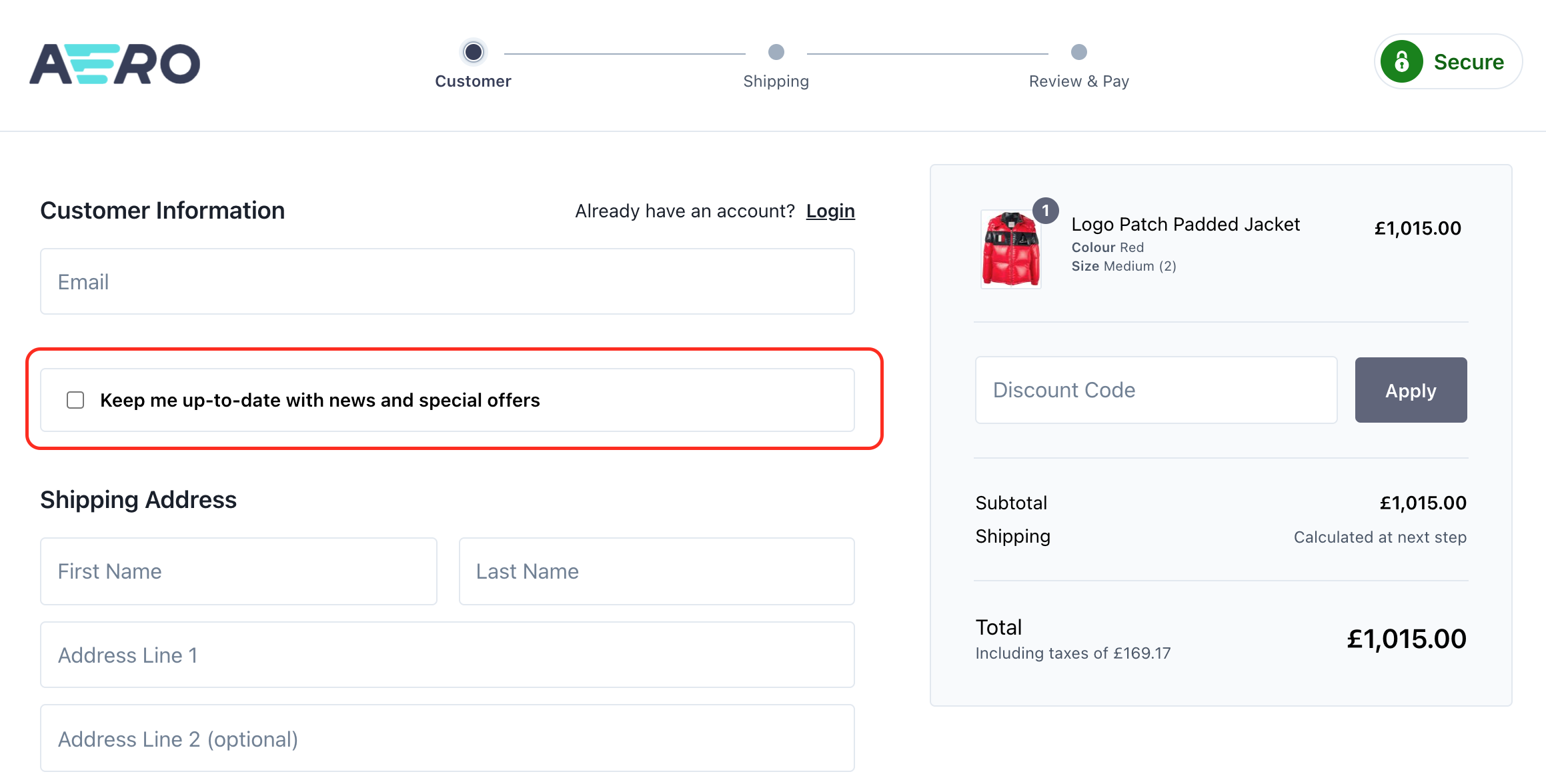
In order to add a marketing optionally opt-in to the checkout we first need to extend the CheckoutCustomerPage to inject our custom view that will show the checkbox for the customer to interact with. This can be done by adding the following code to the project's AppServiceProvider boot method:
\Aero\Checkout\Http\Responses\CheckoutCustomerPage::extend(function ($page) {
    $sections = $page->getData('form_sections');

    $sections = $sections->splice(0, $sections->keys()->search('customer', true) + 1)
        ->put('opt_in', 'checkout.opt-in')
        ->merge($sections);

    $page->setData('form_sections', $sections);

    $order = $page->cart->order();

    if ($order && ($optIn = $order->additional('opted_in'))) {
        $page->setData('opted_in', $optIn);
    }
});
We then need to create our Twig view file, which should be placed in resources/views/checkout/opt-in.twig:
<div class="checkout__section">
    <div class="checkout__list">
        <ul>
            <li>
                <label>
                    <input type="checkbox" name="opted_in" value="1" {{ old('opted_in', opted_in) ? 'checked' : null }} />
                    <span><strong>Keep me up-to-date with news and special offers</strong></span>
                </label>
            </li>
        </ul>
    </div>
</div>
This will result in the checkbox showing on the first step of the checkout. We now need to ensure that the checkbox choice is remembered and stored against the order. Add the following code to the AppServiceProvider boot method just below the code that was added above.
\Aero\Checkout\Http\Responses\CheckoutCustomerSet::extend(function ($page) {
    $data = \Illuminate\Support\Facades\Validator::make($page->request->all(), [
        'opted_in' => 'sometimes|bool',
    ])->validate();

    $optedIn = $data['opted_in'] ?? null;

    if (($order = $page->cart->order()) && ($optedIn !== null || $order->additional('opted_in'))) {
        $order->additional('opted_in', $optedIn);
    }
});
The checkbox value will now be stored against the order as an additional attribute, which we can pick up once the customer has ordered using an event listener. Finally, add the following code into the AppServiceProvider boot method to listen to the OrderPlaced event:
\Illuminate\Support\Facades\Event::listen(\Aero\Cart\Events\OrderPlaced::class, function ($event) {
    if ($event->order->additional('opted_in')) {
        $email = $event->order->email;
        // send $email to a third party...
    }
});
Within this event listener, you can add your code to send information about the order, such as the email address of the customer, to a third party system.
How do I change the logo in the checkout?
You can change the logo in the checkout by creating this file: resources/vendor/checkout/sections/logo.twig and putting your logo contents inside of it.
Example contents:
<a href="{{ route('home') }}" title="{{ trans("checkout::general.return_to_store_link") }}">
   <svg xmlns="http://www.w3.org/2000/svg" viewBox="0 0 764.8 178.1" xml:space="preserve">
       <path fill="#383d5a" d="M675.8 178.1c-49.1 0-89-39.9-89-89s39.9-89 89-89 89 39.9 89 89c0 49-39.9 89-89 89m0-138.1c-27 0-49 22-49 49s22 49 49 49 49-22 49-49-22-49-49-49M570.4 63.7C569.9 28.2 540.3 0 504.9 0h-54.8c-2.3 0-4.4 1.4-5.3 3.6l-66.4 166.7c-1.5 3.7 1.3 7.8 5.3 7.8h30.9c2.3 0 4.4-1.4 5.3-3.6l16.7-41.9c.9-2.2 2.9-3.6 5.3-3.6h37.7c2.3 0 4.4 1.4 5.3 3.6l16.7 41.9c.9 2.2 2.9 3.6 5.3 3.6h30.8c4 0 6.7-4 5.3-7.8l-16.5-41.4c-.6-1.5.2-3.2 1.7-3.7 24.8-9.2 42.5-33.3 42.2-61.5M505.3 89h-47.2c-2 0-3.4-2-2.6-3.9l17.3-43.4c.4-1.1 1.5-1.8 2.6-1.8h30.5c13.4 0 24.3 10.7 24.5 24C530.6 77.8 519 89 505.3 89M190.4 170.3l-67-166.7c-.9-2.1-2.9-3.6-5.3-3.6h-46c-2.3 0-4.4 1.4-5.3 3.6L.4 170.3c-1.5 3.7 1.3 7.8 5.3 7.8h30.8c2.3 0 4.4-1.4 5.3-3.6l16.7-41.9c.9-2.2 2.9-3.6 5.3-3.6h63.1c2.3 0 4.4 1.4 5.3 3.6l16.8 41.9c.9 2.1 2.9 3.6 5.3 3.6h30.9c3.9 0 6.7-4.1 5.2-7.8m-113-85.2l15.1-38c.9-2.4 4.3-2.4 5.3 0l15.3 38c.7 1.9-.6 3.9-2.6 3.9H80c-2 0-3.4-2-2.6-3.9"></path>
       <path fill="#54e0e4" d="M330.9 178.1c11 0 20-9 20-20s-9-20-20-20H216.8c-4 0-6.8 4.1-5.3 7.8l11.5 28.7c.9 2.1 2.9 3.6 5.3 3.6h102.6zM386.3 0h-225c-4 0-6.8 4.1-5.3 7.8l16.6 41.4c1.3 3.2 4.4 5.3 7.9 5.3h84.3c2.4 0 4.7-1.5 5.6-3.8l3.6-8.9c.5-1.1 1.6-1.9 2.8-1.9h109.1c10.8 0 20.1-8.4 20.5-19.3.3-11.2-8.8-20.6-20.1-20.6M358.6 69H189c-4 0-6.8 4.1-5.3 7.8l16.6 41.4c1.3 3.2 4.4 5.3 7.9 5.3h29c2.5 0 4.7-1.5 5.6-3.8l3.6-8.9c.5-1.1 1.6-1.9 2.8-1.9h108.9c10.8 0 20.1-8.4 20.5-19.3.4-11.2-8.7-20.6-20-20.6"></path>
   </svg>
</a>